Clean The Backrooms Controls
Platform-agnostic inputs for cleaning, dumping, shopping, and sprinting.
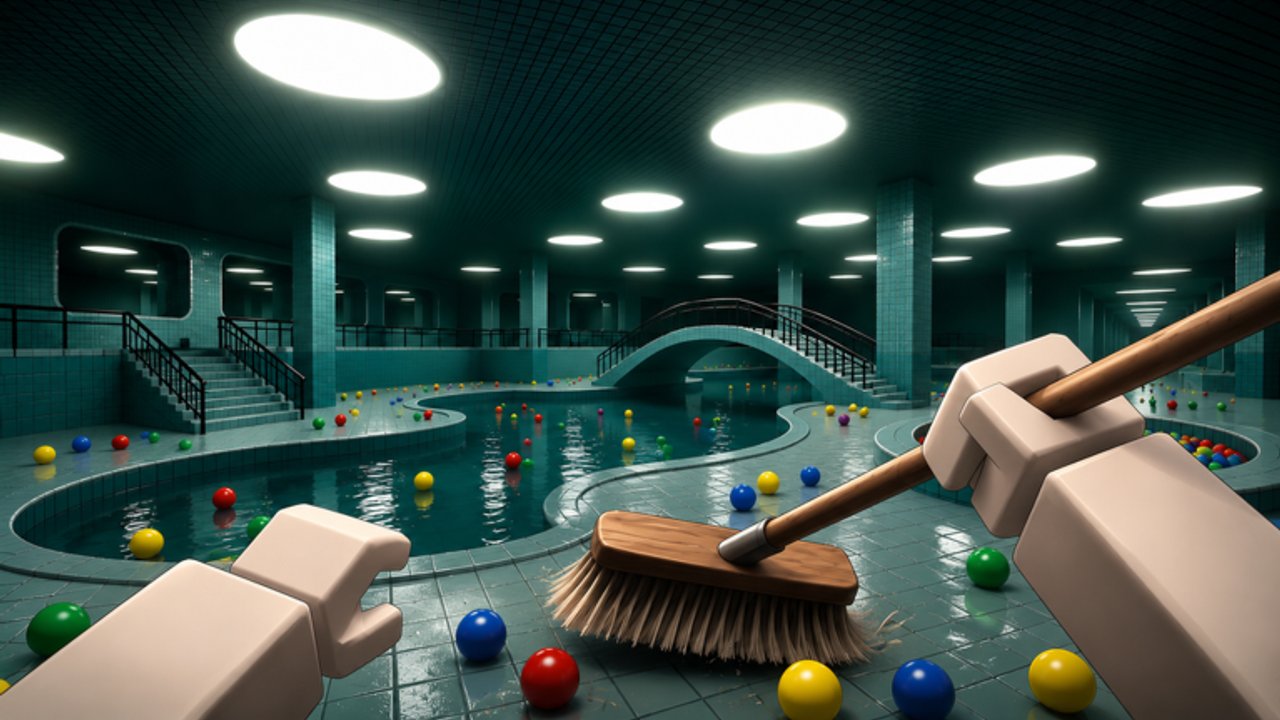
Clean The Backrooms! [Anomaly] is a Roblox cleaning and horror incremental, so controls follow Roblox platform norms more than a single fixed PC layout. This page explains what you need to do — interact, pick up, store or dump, sprint, open shop-style panels — without inventing keybinds that may differ by device, Roblox settings, or future patches. Use it beside Getting Started on day one and beside How to Clean Fast when dumps feel clumsy.
If a prompt appears on screen, trust the on-screen prompt over any wiki memory. Roblox can remap actions in Settings → Keyboard & Mouse / Gamepad, and mobile uses thumb-zone buttons that move with UI scale.
What you must be able to do
Regardless of platform, a competent cleaner needs:
- Move through liminal halls without getting stuck on props.
- Interact / pick up balls and world objects the game marks as usable.
- Carry and store / dump inventory into ball pits.
- Equip or switch tools such as vacuum, broom, and leaf blower when owned.
- Sprint (or equivalent faster move) for pit returns and lights-out retreats.
- Open facility UI — community sessions often describe shop.exe-style computer panels for upgrades, tools, and keys.
- Use Roblox menu / leave safely without rage-quitting mid-purchase.
Master those verbs before optimizing routes. Speed dies when every dump becomes a button hunt.
PC expectations
On keyboard and mouse, Roblox experiences typically use:
- WASD (or arrow keys) for movement.
- Mouse look for camera aiming toward piles, pits, and computers.
- An interact / use key — commonly E in many Roblox games, but confirm the on-screen prompt in your session.
- A sprint key — commonly Shift when the experience enables sprint; again, verify in Roblox settings if it feels absent.
- Number keys or hotbar clicks for tools if the game exposes a hotbar.
- Click on world UI and shop panels when a computer or board is in range.
Because Clean The Backrooms is first-person cleaning, keep the camera at floor level when scooping so interact traces hit balls instead of wallpaper. When dumping, look directly at the pit until the prompt appears; looking past it into the void is a common false “controls broken” report.
Do not assume console bindings from a YouTube overlay — creators remapped layouts constantly. If a video shows a key, treat it as that creator’s setup.
Mobile expectations
On phones and tablets:
- Use the dynamic thumbstick to move and the camera drag zone to look.
- Tap the on-screen interact button when it appears near balls, pits, doors, or computers.
- Watch for sprint / jump buttons if the experience enables them; placement varies with Safe Area settings.
- Open shop computers by walking into prompt range and tapping interact — tiny screens make it easy to face the wrong angle, so nudge the camera until the prompt sticks.
- Consider a higher graphics / UI scale balance you can still read during lights-out; unreadable prompts are a controls problem in practice.
Mobile cleaners should prefer shorter dump loops until muscle memory lands. Long broom pushes are harder on thumbs; vacuum lanes with Ball Magnet (see Upgrades Guide) often feel better on touch.
Console / gamepad expectations
On gamepads through Roblox:
- Left stick move, right stick look.
- Face buttons handle interact / confirm — match the on-screen button icon, not a wiki guess.
- Triggers or bumpers may map to tools or sprint depending on the experience and Roblox’s gamepad defaults.
- Use the Roblox gamepad settings menu if look sensitivity makes dumps miserable.
When playing on a TV, stand closer or raise UI contrast mentally: missing a pit prompt at ten meters is not a skill issue, it is a readability issue.
Interact, pick up, store, dump
Break the cleaning verbs down:
- Interact — generic use for doors, keys activation feedback, computers, and sometimes tools.
- Pick up — collect balls into your carry capacity; may be the same interact key/button when aimed at balls.
- Store / dump — empty carried balls into a pit. Aim at the pit, wait for the prompt, hold or tap as the game requires until the deposit registers.
- Cancel — if you walk away mid-prompt, assume the dump did not count; look back and confirm fill feedback.
Full-inventory confusion feels like a controls bug. If interact does nothing, check whether pockets are full and you are aiming at balls instead of a pit — dump first. Capacity upgrades like Big Pockets change how often this happens (Upgrades Guide).
Sprint and lights-out movement
Sprint exists to shorten empty walks and to retreat during lights-out. Practice:
- Sprint toward known pits on the return trip.
- Sprint toward a preplanned safe spot when blackout warnings hit — see Survive Lights Out.
- Do not sprint blindly into unexplored dark wings; speed without a destination is how anomalies win.
If sprint feels missing, check Roblox movement settings and whether stamina-style limits apply in the current build. Movement upgrades, when present in the shop, are throughput for your feet — still secondary to reading prompts correctly.
Shop.exe and facility UI panels
Players frequently describe computer panels with names like shop.exe (and related facility programs) for buying tools, upgrades, and keys. Controls tips for those panels:
- Walk up to the computer or board until an interact prompt appears.
- Use mouse click or the confirm face button to select entries; on mobile, tap the list rows carefully.
- Dump inventory before shopping if you need accurate cash for the Waiting Area key or upgrades (Keys and Rooms).
- Close the UI fully before you sprint — many players “lose” movement because a panel is still capturing input.
If the shop lists something you do not recognize, read the in-game description. Wiki pages explain strategy; the live panel owns the price.
Tool switching
Vacuum, broom, and leaf blower only help if you can equip them under pressure:
- Learn your hotbar or equip menu on a quiet daytime loop.
- Switch tools when room geometry changes — broom for mounds, vacuum for scatter, blower for open herding (How to Clean Fast).
- In co-op, announce tool roles so two vacuums are not fighting one broom lane.
Accessibility and settings checklist
- Rebind conflicting keys in Roblox settings if chat or emotes steal your interact key.
- Lower camera shake / raise brightness if lights-out becomes unreadable (within what the experience allows).
- On mobile, enable a comfortable shift of UI buttons away from the thumbstick.
- Verify microphone / chat binds separately so callouts during blackouts still work in 24-player servers.
Practice routine (five minutes)
- Pick up balls until you see a full or near-full state.
- Dump at a pit; confirm the deposit.
- Open the shop panel; buy nothing; close it and confirm movement returns.
- Equip each owned tool once.
- Sprint a short path to a safe landmark you will use during lights-out.
Repeat after every Roblox client update if something feels off.
Common “controls are broken” fixes
- You are full and aiming at balls — dump at a pit.
- Camera aimed at wall art instead of the pit mouth — look down.
- Shop UI still open — close it.
- Wrong tool equipped for the job — switch, then interact.
- Mobile prompt off-screen — rotate until the button appears.
- Remapped Roblox binds — reset to default, then reapply one change at a time.
Where to go next
- New to the loop? Getting Started.
- Ready to optimize? How to Clean Fast and Upgrades Guide.
- Buying doors? Keys and Rooms.
- Scared of the dark? Survive Lights Out.
- Ranking spends? Tier List.
Controls competence is invisible when it works and infuriating when it does not. Learn the verbs, trust on-screen prompts, and let upgrades and routes — not guessed keybinds — carry the rest of Clean The Backrooms.
Frequently Asked Questions
Quick answers to the most common questions.
What are the exact keybinds for Clean The Backrooms?
They follow Roblox platform settings and on-screen prompts, which can differ by PC, mobile, and console. Use the prompt in your session rather than a fixed wiki key list.
Why can I not pick up more balls?
Your carry capacity may be full. Find a ball pit, aim at it until the dump prompt appears, deposit, then resume collecting. Big Pockets increases capacity later.
How do I open the shop?
Approach the facility computer or board UI (often described as shop.exe-style panels), wait for the interact prompt, then confirm with click, tap, or the gamepad face button shown on screen.
How do I sprint on mobile or console?
Use the on-screen sprint control on mobile if present, or the gamepad control shown in Roblox prompts. Check Roblox movement settings if sprint seems missing.
What should I practice before lights-out?
Practice dump prompts, closing the shop UI cleanly, tool swaps, and a sprint path to a known safe landmark. Then read the Survive Lights Out guide.